
As a graphic designer who practically lives in Photoshop and Illustrator, I really have come to love shortcuts, but what happens when your beloved shortcuts start becoming a little complex and hard to keep up with? I spent many years wishing for a device that I could use to program my shortcuts into, which would help me visually keep up with them and access them as easily as possible. Luckily, the wonderful people at Elgato have come up with the exact device I was looking for, albeit it wasn’t specifically made for this purpose.
Let me introduce you to my best friend, the Elgato Stream Deck. This amazing piece of technology is essentially a set of 15 physical keys that you can bind virtually any command to by using their proprietary Stream Deck Software on Windows and macOS. To put it simply, the Stream Deck allows you to bind shortcuts or actions into a single key on the Stream Deck. You can then put these keys into folders to keep them organized and make room for even more keys. You essentially have an unlimited number of keys to work with. If you are like me, I’m sure you can already think of a few very good uses for this. The best part is, it’s not even that difficult to set up. In this guide, I’ll show you how to get started.
Installing your Stream Deck
First and foremost, you need to have access to the Stream Deck, which at the time of writing is available on amazon.com for about $150 USD, but if you don’t want to spend that much, they also have a mobile version available for $2.99 a month or $25 dollars for 12 months. Think of the mobile version as a trial to see if you like it.
Once you decide which route you will take, you need to download the Stream Deck software from Elgato here.

Simply select “Stream Deck” and your operating system and then click the download icon. This will download the most current version of the Stream Deck Software to your computer. Run the installer and install the software.
Once the installation is complete, you should see the Stream Deck Icon on your desktop. Congratulations, your Stream Deck is now installed and ready to use.
I will be showing you how to set up a Stream Deck for Photoshop, but the setup process is very similar if not the same for most other programs.
Setting up your Stream Deck for Photoshop.
When you first launch the Stream Deck software you will be brought to a screen that shows you your keys and the “Welcome” key in the middle. In order to have your Stream Deck work as efficiently as possible, we need to first program it to switch to a specific profile when you open the Photoshop application. A profile is basically just a save file containing the keys you create within it. If you switch between profiles, you will also switch the layout and function of the keys.
To do this, click on “Default Profile” at the left side of the Stream Deck window, and select “new profile” This will add a new profile called “profile 1” which will become your photoshop profile.
Click on “profile 1” and then select “edit profiles” This will bring up a new window that will help you link your profile to photoshop. With your new profile selected, click on the “application” drop-down and select “photoshop” then close the window. If you wanted to rename the profile, you can do it from this window.

Now when you open Photoshop it will automatically switch your profile to the one you set up. You can repeat this process for Illustrator, Premier, After Effects, or whatever other application you want.
Adding actions to your Stream Deck
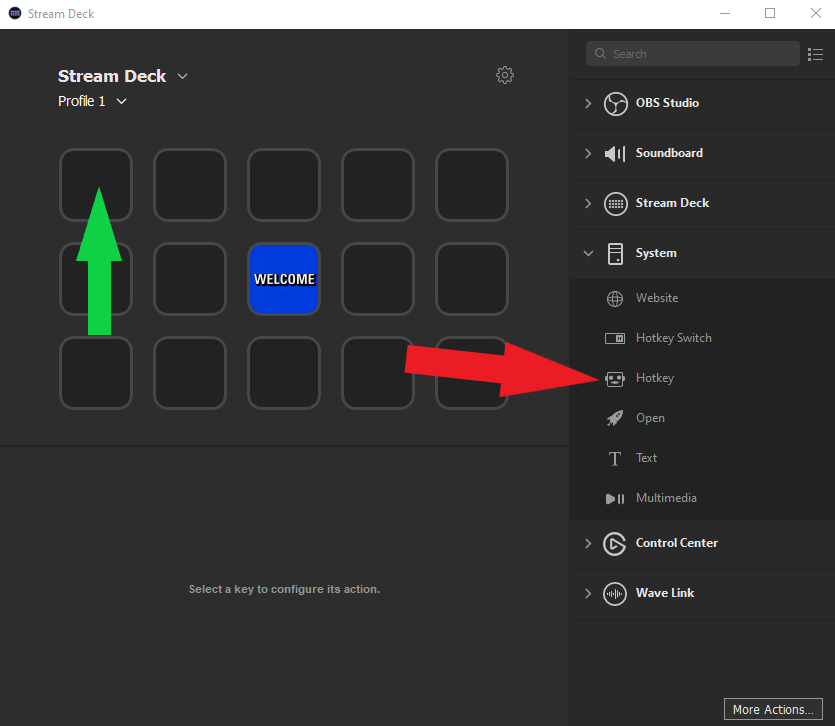
In order to activate a shortcut in photoshop with your Stream Deck, you will need to first add a hotkey button to your Stream Deck. These can be found in the “system” actions menu. For this tutorial, we will create a shortcut to active the Brush Tool (B).
To add the key, simply drag the “Hotkey” item marked by the red arrow into the key marked by the green arrow. This will place a new unnamed hotkey in the key on both the software and the physical Stream Deck.
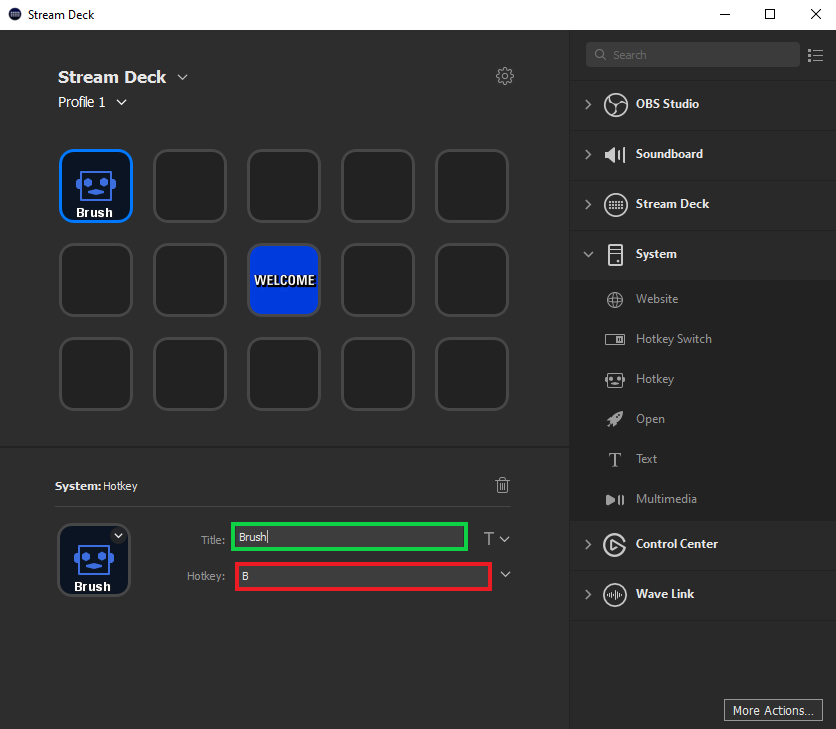
To give the new key a name and a purpose you will need to tell the software what the key should be called and what action the key is to perform. This can be done by selecting the new key you just added and filling in the information. The name of the shortcut will go in the title box marked green, and the shortcut itself will go in the hotkey box marked red.
You can also change the image in the background of the key by clicking on the down arrow on the top right corner of the current key background and selecting “set from file” you can then select an image to place on the background of the key. You can find a pretty good set of backgrounds that match photoshop on google images.
In order to add further shortcuts, you will first have to either create or find your shortcut on photoshop and then create a new key on your Stream Deck and assign that shortcut to the hotkey.
You’re done!
It’s as easy as that. You have now set up a key on your Stream Deck to select your brush tool. From here, it is just a matter of creating the rest of your most-used hotkeys onto your stream deck.
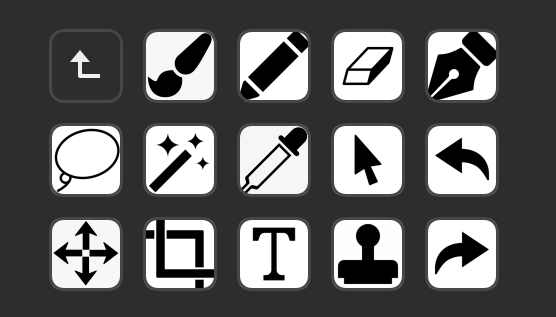
With just a little time and effort, you can convert your Stream Deck into an ultimate shortcut keyboard for just about any application. You can think of each screen as a toolbox that you can fill with whatever shortcuts you need together for a particular task.
Personally, I have a folder set up for my basic toolbar, and a folder for each individual task that I find myself doing frequently throughout my workflow. I couldn’t imagine doing my job without my Stream Deck anymore, since it has become one of the most valuable tools I use during my day to day routine. To this day, I am still adding new shortcuts and creating new folders when I find myself in need of a new set of tools. If you already have a Stream Deck, give this a try, it can be potentially game-changing for you. If you don’t have one already, I highly recommend getting one or at least trying out the mobile version to see if this tool can make your job easier.


Recent Comments